How many cells do I need?
Start with the 8 by 8 grid. Use fewer cells for a simple outline or more for small features. If you change the grid or paper shape, save both sheets again so they still match.
Add a drawing grid to my photo and download a matching blank sheet to draw on.
Blank Square 1:1 grid, 8 rows x 8 columns

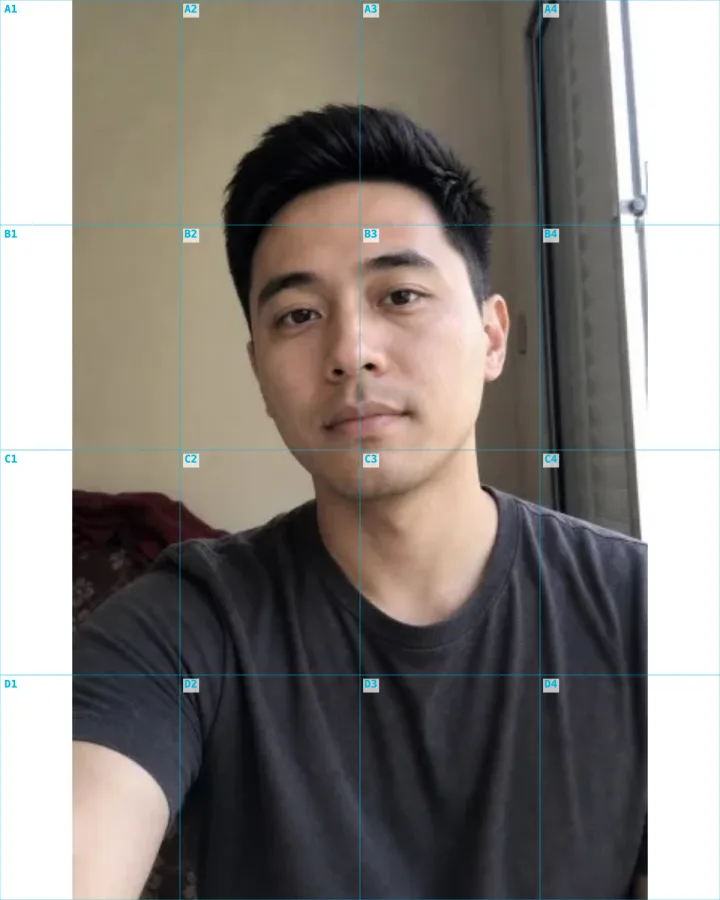
A 4×4 drawing grid keeps the portrait in proportion.
Add a JPG, PNG, or WebP. Choose the paper shape and check that the subject fits.
Set rows, columns, and line visibility. Keep labels on to match each cell while drawing.
Save the photo grid, then the matching blank grid. Keep the settings unchanged so both sheets line up.
Find where an outline crosses a cell edge in the photo. Mark the same position in the matching blank cell, then connect the marks lightly. Check the whole drawing as you go.
Yes. Download the photo grid and matching blank grid without changing settings. Each is a 2400-pixel-wide PNG, not a PDF or an original-resolution copy. Select the same paper size and print scale for both.
Keep the same proportions and row and column counts on the reference and canvas. Check the physical dimensions before drawing; the PNG does not set your printer scale.
Choose Full photo to keep the whole photo, with blank space if needed. Fill page fills the sheet by cropping the photo. Check the preview before saving both grids.
Yes. The free grid tool processes your photo in your browser. No account is needed. Optional AI tools use a separate upload.
Start with the 8 by 8 grid. Use fewer cells for a simple outline or more for small features. If you change the grid or paper shape, save both sheets again so they still match.
AI styles
Choose a style, preview an example, then create an image with AI credits.