

Custom Grid Maker — Choose Rows, Columns and Line Settings

Build a custom grid with independent row and column counts. Start with an 8-column, 10-row portrait layout and adjust the guides to your project.

  • Free browser tool
  • No signup required
  • No watermark

Custom Grid Maker — Choose Rows, Columns and Line Settings editor

Grid preview

Blank Portrait 4:5 grid, 10 rows x 8 columns

OriginalDrawing grid

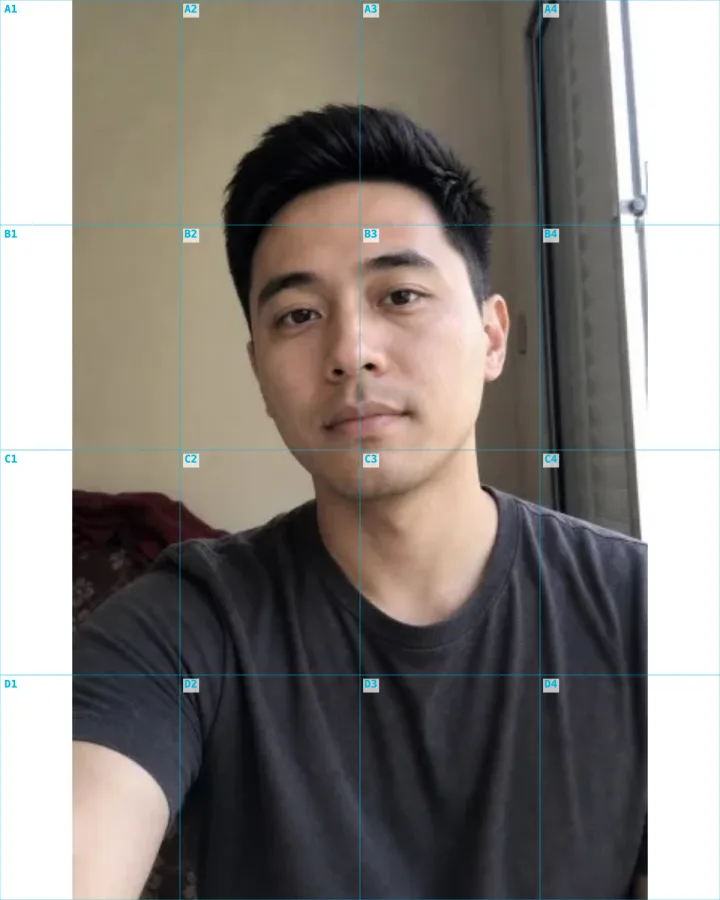
A 4×4 drawing grid keeps the portrait in proportion.

How do I use this tool?

  1. 1.Set the page proportions

    Start with Portrait 4:5 or choose another shape. Use a blank canvas or select one image as the background.

  2. 2.Customize both axes

    Move Rows and Columns independently. The initial ten rows and eight columns form a square-cell layout on the 4:5 canvas.

  3. 3.Tune and download

    Adjust line width, color, and opacity. Review the labels, then export the complete grid as a PNG.

Before I download

Can row and column counts differ?

Yes. In Custom mode, each control is independent and normally ranges from one to thirty. Unequal counts can still produce square cells when the canvas ratio matches.

Can I move one grid line separately?

No. Custom grids use evenly spaced divisions. Individual line dragging, unequal cell sizes, and spreadsheet-style editing are not available.

Choose counts around the work you need to do

Custom mode is useful when a fixed rule-of-thirds guide is too coarse. An 8-by-10 grid on a 4:5 canvas gives regular square cells for comparing distances across a portrait.

For a broad outline, reduce the counts so you can see the main shapes clearly. Increase them when you need more reference intersections, while checking that the extra lines do not hide important edges.

Line controls serve different backgrounds

Purple starts as an alternative to black for references containing dark clothing or shadows. Change it if the reference already contains similar colors; visibility matters more than keeping the preset.

Opacity and width are independent. A thin, opaque line can remain readable without covering much detail, while a wide line may help on a printed sheet. The export combines all visible settings into one image.

AI styles

Try a different look for my photo

Choose a style, preview an example, then create an image with AI credits.

Loading AI templates.