
Ripped-Paper Portrait Grid: Make a 2x2 AI Portrait Collage
Learn how to create a ripped-paper portrait grid with AI Grid Maker for creator launches, artist profiles, music covers, and social posts with a torn-paper frame.
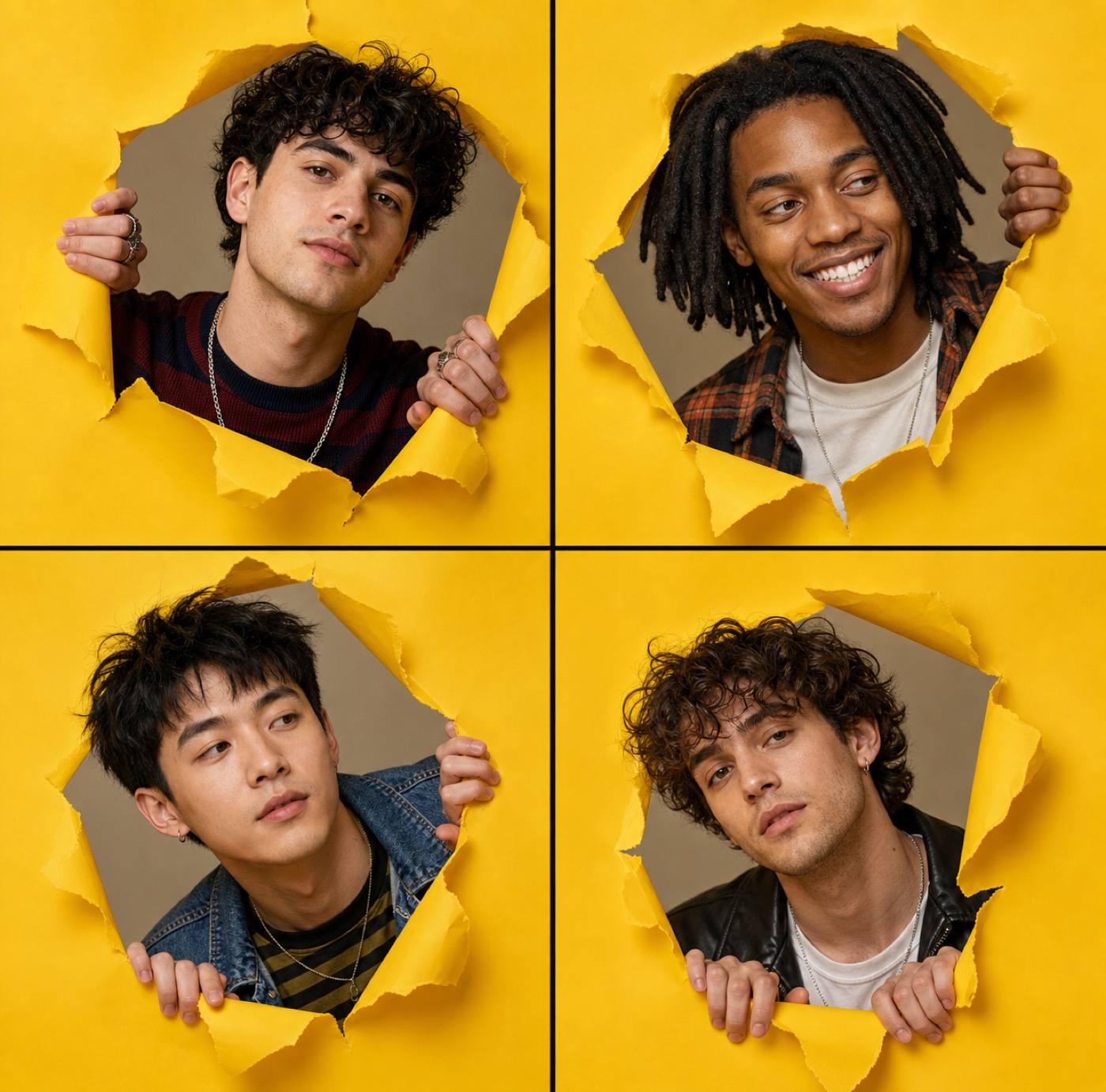
A ripped-paper portrait grid places your portrait inside torn-paper openings. Each of the four panels shows a generated expression or angle. Try it when you want a framed portrait collage from one source photo.
The AI Grid Maker ripped-paper portrait series creates a 2x2 portrait grid from one uploaded image. It is useful when a normal headshot feels too quiet and a full collage feels too busy.
When would I use a 2x2 layout?
Four panels leave more space for each face than a nine-panel grid. Check the result at its intended display size, especially if you plan to use it as a small profile image.
This makes it a strong fit for artist profile images, podcast guest cards, newsletter announcement art, music release teasers, creator launches, and bold personal brand posts.
Pick the right upload
Start with one clear portrait. The face should be visible, the expression should be natural, and the image should not already have heavy design treatment. The template supplies the yellow paper, torn edges, and grid structure, so the upload should focus on identity.
If the original image is too dark, cropped at the forehead, or covered by sunglasses, the result may lose the personality that makes the template work.
Generate the template
Upload a portrait on AI Grid Maker first, then choose Ripped-paper portrait series. Review the frame and credit cost. Add a short direction only if you want a specific tone.
Try:
- "more confident expression"
- "cleaner studio portrait"
- "warmer skin tone, still natural"
- "more dramatic torn edges"
- "keep the face close to the upload"
The best output should feel bold but simple. If it becomes too decorative, remove extra instructions and let the template carry the composition.
What can I do with the download?
Use the collage as a post, cover image, or portrait board. It downloads as one image. Check the crop in the app where you will post it; if you need separate files for each panel, use Instagram Grid Splitter afterward.
Check the generated result before using it
This is an AI-generated image, not evidence of a real photo shoot. Faces, poses, text, logos, and product details can change between panels. Inspect every panel and keep the original upload for comparison. For an accurate record of a person or product, arrange real photos with Photo Grid Collage.
Generation requires an account and credits. Check the displayed cost before submitting and the current credit packages when you need more. Example images show a possible result, not a guaranteed match for every upload.