
How to Make Several Photo Collages With the Same Layout
Set a collage layout once, then swap in the next set of photos without starting over. Covers which settings carry over, file naming, mixed photo shapes, and the limits to know before a large batch.
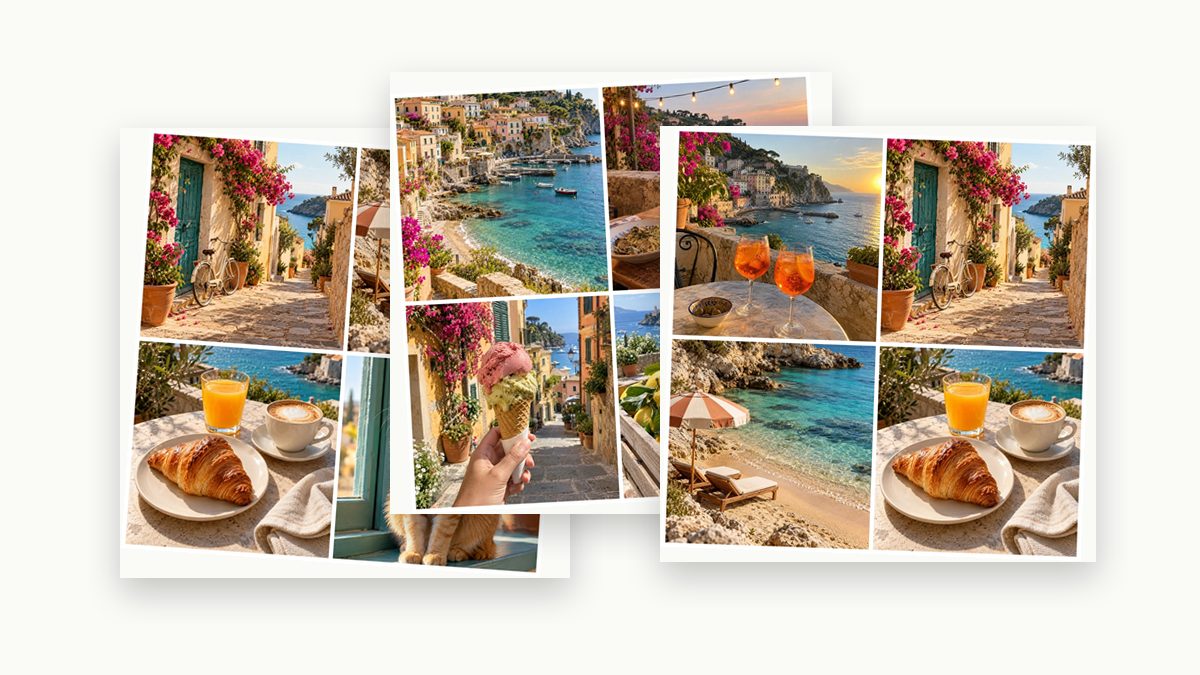
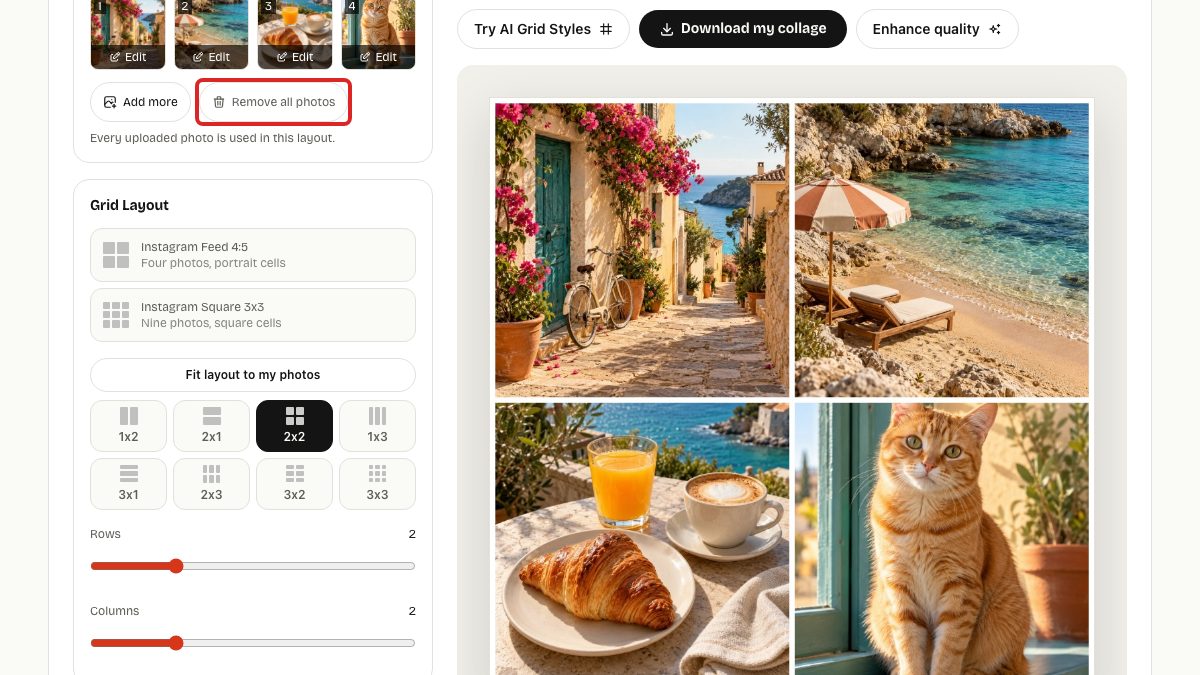
To make several collages with the same layout, open Photo Grid Collage Maker, set the layout and style for the first set of photos, and download it. Then click Remove all photos, add the next set, and download again. Your layout, cell shape, spacing, background, corners, photo fit, and frame stay as they are until you reload or close the page.
You still make and download each collage separately; this is not an automatic batch export. Before working through a large set, finish one collage and open the downloaded file to check the crop, order, and spacing.
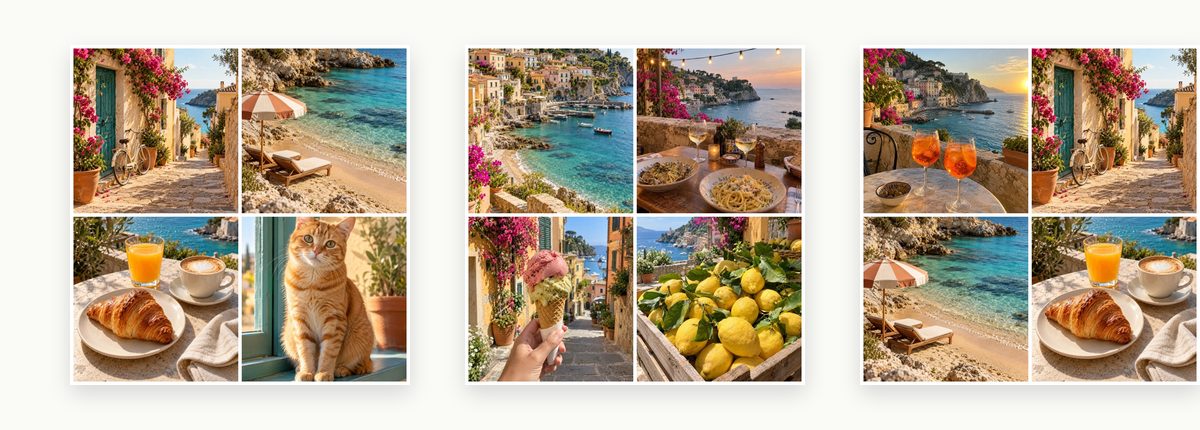
For example, twelve trip photos can become three 2 × 2 collages with four photos each. Group the photos before you start, then keep the first collage as a reference while you make the other two.
Which settings stay when I change photos?
| Setting | Stays after Remove all photos | Note |
|---|---|---|
| Rows and columns | Yes | Up to 5 × 5 cells |
| Cell shape (Square, 4:5, 9:16, 3:2, 16:9) | Yes | Changes the shape of every cell |
| Photo fit (Fill cells or Show whole photo) | Yes | See the mixed-shape section below |
| Spacing, rounded corners, background | Yes | |
| Frame and the optional Made with tag | Yes | A frame adds a border around the collage |
| Your photos and their order | No | Each set starts empty |
| Any setting after a page reload | No | Settings are not saved between visits |
If you explored with Try with sample photos, your first upload replaces the samples and changes the rows and columns to fit the number of photos you added. Set your layout after that first upload, not before it.
Step by step
- Choose the first set. Open the collage maker, click Choose my photos, and pick the photos for the first collage. They fill the cells in the order they are added, from left to right and top to bottom. Check the numbered thumbnails; your file picker may not preserve the order in which you selected the files.
- Set the layout once. In Grid Layout, choose a preset or set Rows and Columns. In Style, choose the Cell shape, Photo fit, Spacing, Rounded corners, and Background. Check the preview after each change.
- Download the first collage. Click Download my collage. A dialog then offers optional AI styles; click Keep my free download to close it. The download itself does not need an account and has no watermark.
- Swap in the next set. Check that the first file is saved, then click Remove all photos and Choose my photos again. The new photos use the same layout. Check the preview before downloading.
- Repeat for each set, then rename the files (see below).
Keep every collage in the set consistent
Keeping the settings is only part of the job. Check these details for each new set:
- Use the same number of photos each time. A 2 × 2 layout with three photos leaves one empty cell in the background color. The message under your photos tells you how many cells are still empty or how many photos are unused.
- Check the photo order. Removing a photo shifts the later photos forward. Adding it again with Add more puts it last; it does not return to its old cell. For a specific order, remove all photos and use Choose my photos, then Add more, to add them one at a time.
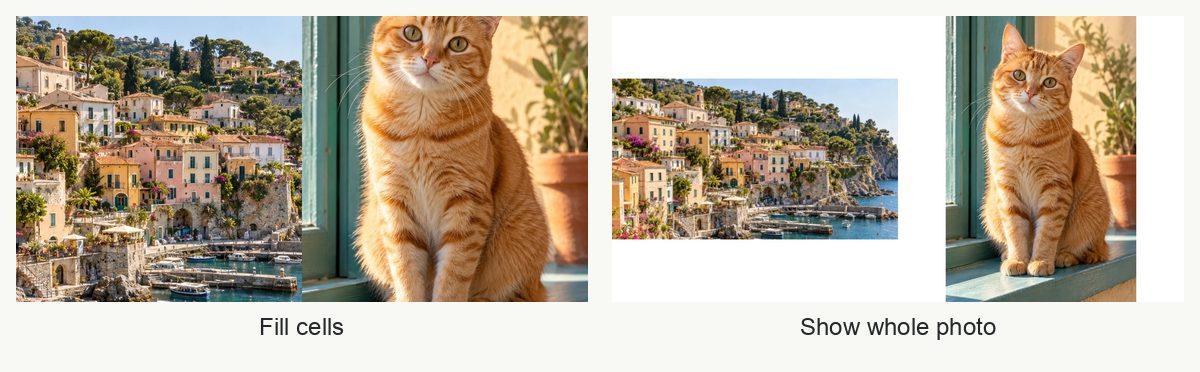
- Mixed portrait and landscape photos. With Fill cells, each photo is cropped to the cell shape, so a landscape photo in a tall cell loses its sides. Choose Show whole photo to keep every edge; the free space around each photo uses the background color. Pick one mode for the whole set so the collages match.
- Crop a single photo. Click Edit on its thumbnail to open the photo editor. The edit applies to the collage only; your original file stays unchanged.
Name the files before you lose track
Every download from the same layout gets the same name, for example photo-grid-2x2.jpg. Most browsers then add a number such as photo-grid-2x2 (1).jpg. Rename each file right after downloading, for example trip-day1.jpg, trip-day2.jpg, so the order is clear when you print, post, or send them.
Write down your layout to reuse it later
Settings reset when the page reloads. Keep a note or screenshot of the values before you leave, so you can rebuild the layout on your next visit:
| Setting | Example value |
|---|---|
| Rows × Columns | 2 × 2 |
| Cell shape | 4:5 |
| Photo fit | Show whole photo |
| Spacing | 8 px |
| Rounded corners | 0 px |
| Background | White |
| Frame | None |
What this workflow cannot do
- No batch export. Each collage is built and downloaded on its own. For 20 collages, you repeat the swap-and-download steps 20 times.
- No saved layouts. Closing or reloading the page resets everything to the tool's defaults.
- 25 photos at most in one collage, and up to 5 × 5 cells.
- Fixed output size. The download is a JPG about 1,080 pixels wide, or a PNG when you add a frame or the Made with tag. For printing, check the pixel size first: see how to make a photo collage that fits a frame.
The collage is built in your browser; your photos are not uploaded to our server to make the free download.
Common questions
Can I change the layout halfway through a set?
Yes, but the collages made before the change will not match the ones after it. If you change the layout, remake the earlier collages too, or keep the change for a separate set.
Why does a downloaded collage look different from the last one?
Check three things: the number of photos (an empty cell shows the background), the photo shapes (Fill cells crops differently for portrait and landscape photos), and whether a frame was switched on.
Do I make the collages one by one even for a big scrapbook?
Yes, for now. If you make the same layout often, tell us how many collages you make at a time and what you use them for. We use those answers to decide what to build next.