
How to Make a Grid Online — Start with Rows and Columns

Make your first online grid with a simple four-by-four setup. Choose a canvas, add a photo if needed, and download your customized PNG.

  • Free browser tool
  • No signup required
  • No watermark

How to Make a Grid Online — Start with Rows and Columns editor

Grid preview

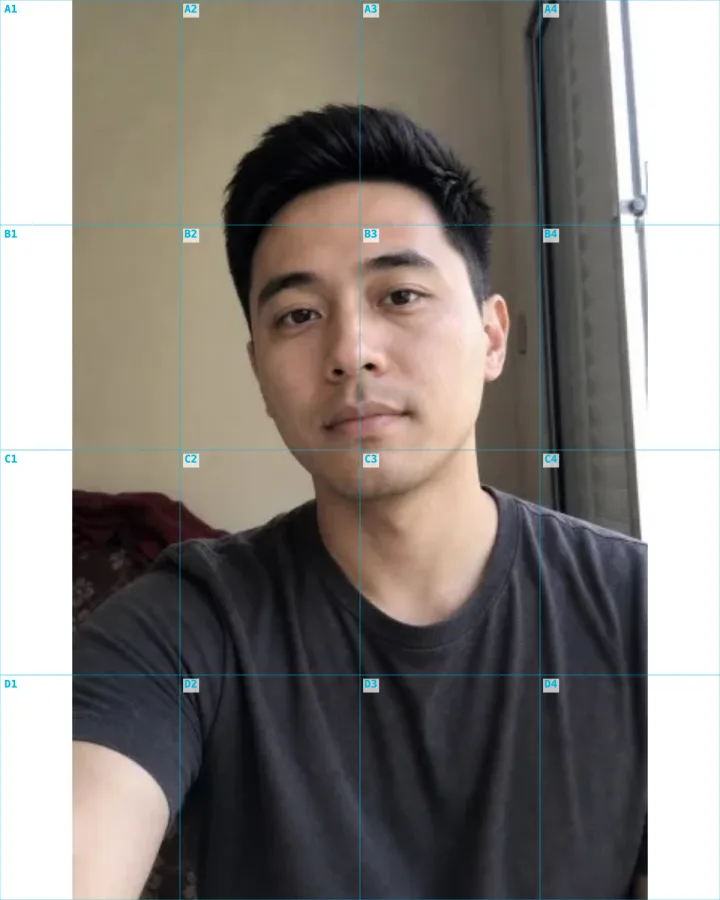
Blank Square 1:1 grid, 4 rows x 4 columns

OriginalDrawing grid

A 4×4 drawing grid keeps the portrait in proportion.

How do I use this tool?

  1. 1.Choose what the grid is for

    Leave the square canvas blank for a worksheet, or select a photo when you want visible guides on a reference.

  2. 2.Set rows and columns

    Start with four of each. Increase a count to make smaller divisions along that direction and inspect the result.

  3. 3.Set lines and export

    Choose a readable color and width. Download the PNG after checking the complete image and its outer edges.

Before I download

How do I make the cells bigger?

Reduce the number of rows or columns. The canvas dimensions stay the same, so fewer divisions leave more room in each cell.

Why does my photo have white margins?

Full photo fits the whole image inside the chosen canvas. Different aspect ratios leave unused space; Fill page fills it but can crop the source.

Rows run across; columns run down

A four-row, four-column layout contains sixteen cells. The row control determines how many horizontal bands divide the canvas, while the column control determines the number of vertical bands.

In Custom mode, the divisions are evenly spaced. Keep this mode selected while learning the controls; composition presets can draw a different guide whose geometry is not simply the displayed row and column count.

Decide the canvas shape early

A square canvas with equal counts creates square cells. If you switch to a taller paper format, the same counts create taller cells, which may be useful for one task and unsuitable for another.

For a photo, Full photo keeps the whole source visible and Fill page fills the canvas by cropping when needed. The download is a combined image, so save the original photo separately if you expect to change the grid later.

AI styles

Try a different look for my photo

Choose a style, preview an example, then create an image with AI credits.

Loading AI templates.