
How to Make a Grid Over an Image — Spacing and Fit Guide

Make an evenly spaced grid over an image with a 5x5 starting layout. Choose the canvas, set the divisions, and save a practical visual reference.

  • Free browser tool
  • No signup required
  • No watermark

How to Make a Grid Over an Image — Spacing and Fit Guide editor

Grid preview

Blank Square 1:1 grid, 5 rows x 5 columns

OriginalDrawing grid

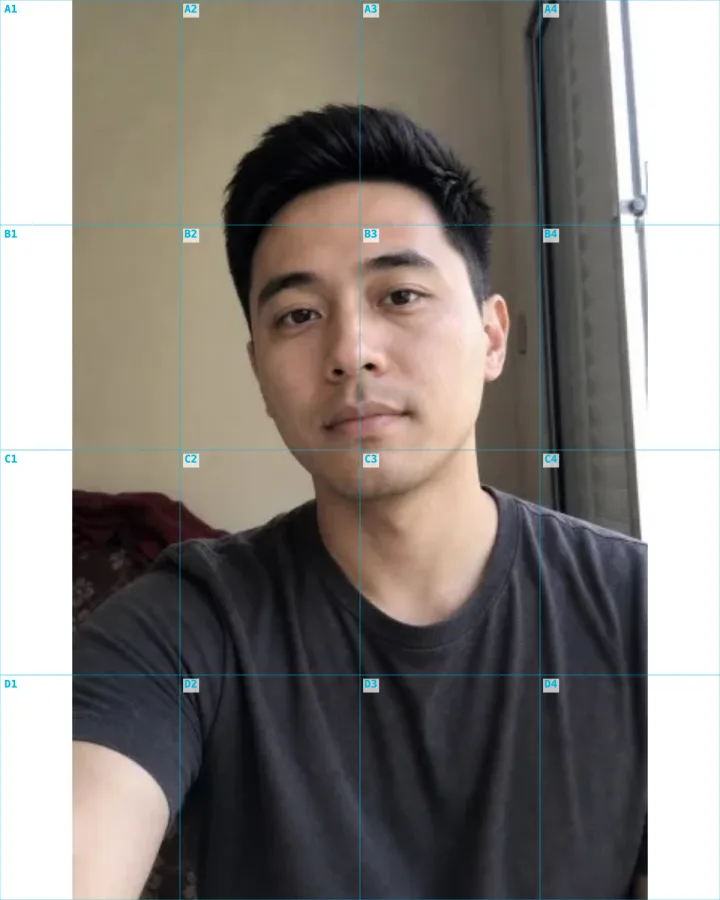
A 4×4 drawing grid keeps the portrait in proportion.

How do I use this tool?

  1. 1.Set the image boundaries

    Upload the image and choose its output shape. Use Full photo to retain the whole source, or Fill page if you deliberately want a crop.

  2. 2.Choose equal divisions

    Begin with five rows and five columns. The grid distributes each count evenly across the selected canvas, so no manual line placement is needed.

  3. 3.Export your working reference

    Set readable lines and useful labels, then download the PNG. Keep the frame and grid counts fixed if you will transfer the image by hand.

Before I download

Can I choose a different number of rows and columns?

Yes. Custom rows and columns each support values from 1 to 30. Adjust them independently to match the shape and detail of your reference.

Why are there empty bands around my photo?

Full photo preserves the complete source when its aspect ratio differs from the canvas. Choose a closer paper shape or use Fill page if cropping the edges is acceptable.

Create square cells deliberately

Square cells depend on both the paper ratio and the row-to-column ratio. Five rows and five columns produce squares on a square canvas. On a 16:9 widescreen canvas, nine rows and sixteen columns give square cells instead. Equal row and column counts alone are not enough.

Check the drawing purpose before adding labels

Labels make it easier to discuss or revisit individual cells. For a clean composition overlay, they may be unnecessary visual clutter. Decide whether you need coordinate references or only visible divisions, then keep the final guide as simple as the task allows.

AI styles

Try a different look for my photo

Choose a style, preview an example, then create an image with AI credits.

Loading AI templates.