
How to Prepare a Photo Grid for a TikTok Post or Cover
Create one vertical collage from several photos, understand cell aspect and output size, and check the crop before using it in a TikTok post or cover.
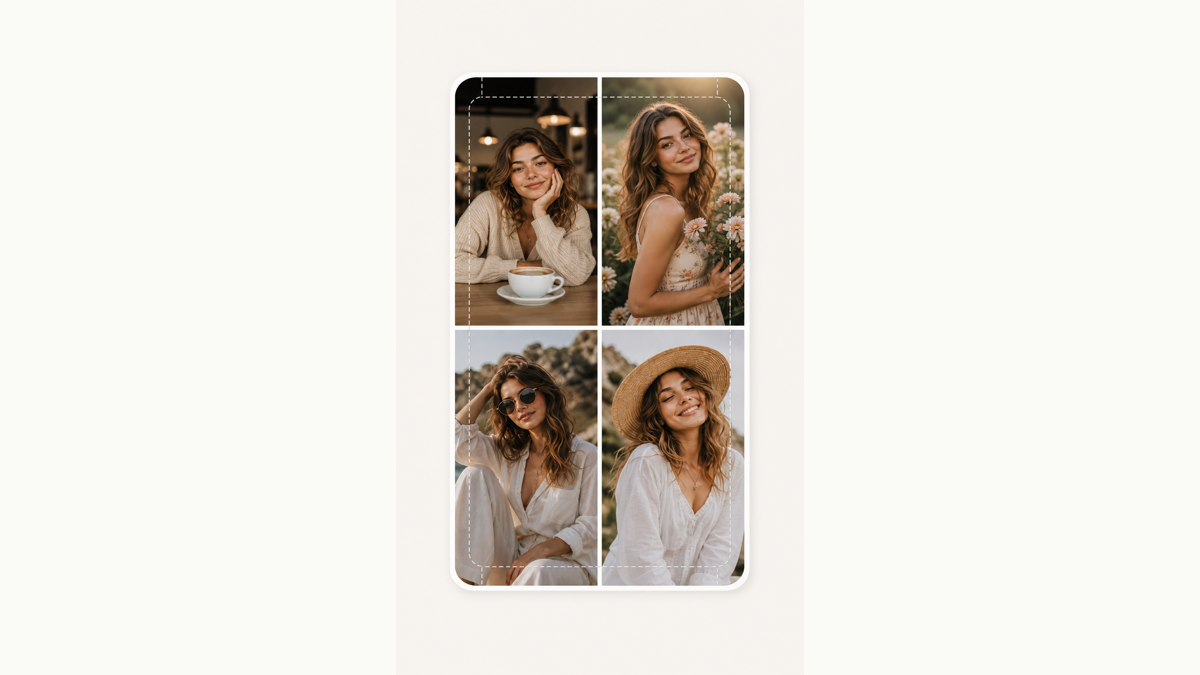
A photo grid combines several pictures into one image. It can be used as a recap, comparison, or cover. It is different from a slideshow, where each picture remains a separate slide. This guide explains the file you create in PhotoGrid; it does not promise views or a particular posting result.
Choose one image or separate slides
Use TikTok Photo Grid Maker when the photos should be visible together. Use the destination app’s photo-post workflow when viewers should swipe through separate images. A collage download cannot turn its cells into slides automatically.
For a four-photo grid, choose one main subject and three supporting images. If every image contains small text or a wide scene, fewer cells may be easier to read on a phone.
Build the collage and check the cell shape
- Upload the photos you want to combine. They fill the grid in upload order.
- Start with the page’s 2×2 layout and 9:16 cell aspect.
- Check faces and text: each photo is cropped to fill its cell. Use Edit on a photo to prepare its crop.
- Adjust spacing and background, then inspect the entire image.
The aspect control sets the shape of each cell. With equal row and column counts and zero spacing, 9:16 cells make a 9:16 canvas. Gaps and unequal row and column counts change the final dimensions. Check the downloaded file rather than assuming every preset produces exactly 1080×1920.
What file do I download?
The base collage export is about 1080 pixels wide. Height follows the chosen rows, columns, cell shape, and spacing. The standard download is JPG; a frame or the optional Made with tag produces PNG. There is no custom-resolution control.
The free collage runs locally without signup. Optional AI actions are separate and require an account and credits.
Check the actual posting preview
Before publishing, inspect the file in the destination app. Covers, profile thumbnails, and opened posts may crop differently, while interface controls can cover parts of the image. Leave room around important faces and text and check both the post and cover preview.
You can control the source composition and the downloaded file. The grid tool cannot guarantee how every app surface will display it or how many people will view the post.