Free browser tool

Instagram Grid Maker

Make an Instagram grid online. Arrange your photos into a 3x3 feed layout, preview how your profile will look, adjust spacing and ratio, then download free — no app, no signup, no watermark.

Want to cut one photo into 3, 6, or 9 tiles?Instagram Grid Splitter

Open editor
Combine up to 9 photosLive 3x3 feed previewNo signup, no watermark

Live preview

Waiting for photos

Examples

Instagram grids you can make

Real creator workflows: profile grids, portrait references, and post-ready exports.

Start with your photo
3x3 feed grid

3x3 feed grid

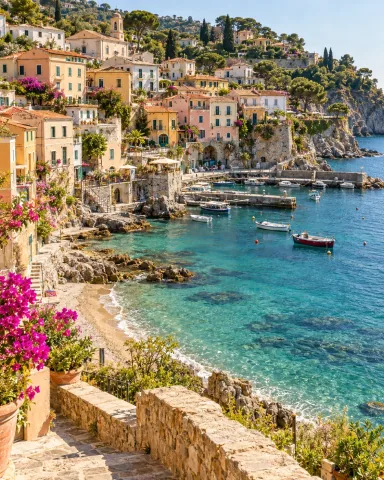
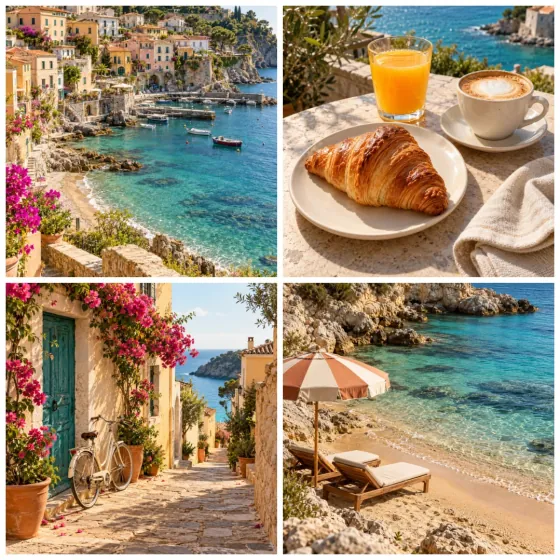
Arrange nine photos into a balanced 3x3 layout and preview how your profile reads.

Aesthetic photo grid

Aesthetic photo grid

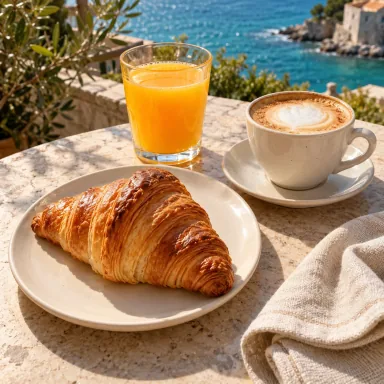
Mix portraits, products, and travel shots into one cohesive feed block.

Feed planner preview

Feed planner preview

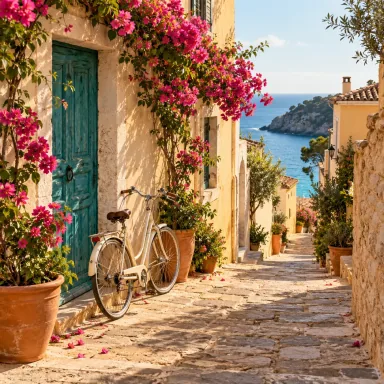
Test the order before you post so the grid stays consistent over time.

How to make an Instagram grid

1

Upload your photos

Add up to nine images from your phone or laptop. Everything stays in your browser.

2

Arrange the 3x3 grid

Drop photos into a 3x3 layout, adjust spacing, ratio, and background until the feed looks right.

3

Download & post

Export a high-resolution, watermark-free image and post your grid to Instagram.

Frequently Asked Questions

What is the difference between an Instagram grid maker and a splitter?+

A grid maker combines several photos into one 3x3 feed layout. A splitter cuts a single image into 9 tiles that you post separately to form a puzzle grid. Use this maker to arrange multiple photos; use the Instagram Grid Splitter to slice one image.

How many photos can I put in an Instagram grid?+

Up to nine for a classic 3x3 feed block. You can also use fewer photos and adjust the layout for a 1x3 row or 2x3 layout.

Is the Instagram grid maker free?+

Yes. There is no signup, no app to install, and no watermark on the exported image. Photos are processed in your browser.

Will it work on my phone?+

Yes. Upload straight from your camera roll, arrange the grid, and download the finished image directly from your mobile browser.

What size should Instagram grid photos be?+

Use square (1:1) or portrait (4:5) photos at 1080px or larger so each cell stays sharp once posted to your feed.

What an Instagram grid maker actually does

An Instagram grid maker combines several separate photos into one balanced 3x3 image — a single feed block you can post, or use to plan how nine pictures will sit together on your profile. It is the opposite of a splitter: instead of cutting one picture into tiles, you are arranging many pictures into a deliberate layout.

This is the tool you want when you have a set of shots — a photo dump, a product range, a travel set, an about-me nine-grid — and you want them to read as one cohesive unit rather than nine unrelated posts. Post the combined image as a single square, or use the preview as a feed planner before publishing the photos one by one.

Planning a cohesive 3x3 feed

A feed block reads as designed when the nine cells share a thread: a consistent color temperature, a repeated subject, or an alternating rhythm such as portrait, detail, portrait, detail. The fastest way to tighten a grid is to pull the photos toward one palette — warmer tones, muted tones, or a single accent color carried across all nine.

Placement matters as much as selection. Put your strongest image in a corner or the center where the eye lands first, and avoid stacking two visually heavy photos side by side. The live preview lets you swap positions until the balance feels right before anything is exported.

Grid, carousel, or puzzle — which layout to use

Use a grid maker when the goal is the look of your profile as a whole: nine photos arranged into one tidy block. Use a carousel — a swipeable multi-photo post — when the photos tell a sequence inside a single post. Use a splitter when you want one big picture broken into tiles that rebuild across the profile.

These solve different problems, so it is worth matching the tool to the outcome. If you actually want to slice a single image into a puzzle feed, the Instagram Grid Splitter is the right tool; if you want to assemble many photos into one layout, stay here.

Picking photos that work together

Variety with consistency is the goal: mix a wide shot, a close detail, and a portrait so the grid has texture, but keep the editing consistent so they still feel like a family. Three hero images, three supporting shots, and three quieter detail or texture frames is a reliable nine-photo recipe.

Watch the backgrounds — nine busy backgrounds fight each other, while a few clean or negative-space frames give the eye room to rest. If two photos are nearly identical, drop one; contrast between neighbors is what makes a 3x3 block feel intentional.

Sizing and exporting for a sharp feed

Square (1:1) cells keep a classic, even 3x3 block, while portrait (4:5) source photos give you more vertical presence if you plan to post the cells individually. Either way, start from images at 1080 pixels or larger on the short side so each cell stays crisp after Instagram compresses it.

Export a high-resolution, watermark-free image once the layout looks right. Because everything is processed in your browser, your photos never leave your device — handy for unpublished work, client sets, or personal photo dumps.